Visit the Ubuntu Satanic store

Website hosted by

Configuration
Once you have installed Ubuntu SE, use the following simple steps to configure it. Note that we use a helper script called sataniconf which is included in the satanic-plymouth-theme package.
Desktop Wallpaper
Right-click the desktop and select Change Desktop Background. The new wallpapers should be available for selection. You can't miss them; they're mostly dark and have kind of a fire theme going on. There are 4:3 and widescreen versions of each.
Gnome Theme
Unity: Click the icon in the top left and search for "Appearance". Run the Appearance application.
Classic Gnome: Select System->Preferences->Appearance.
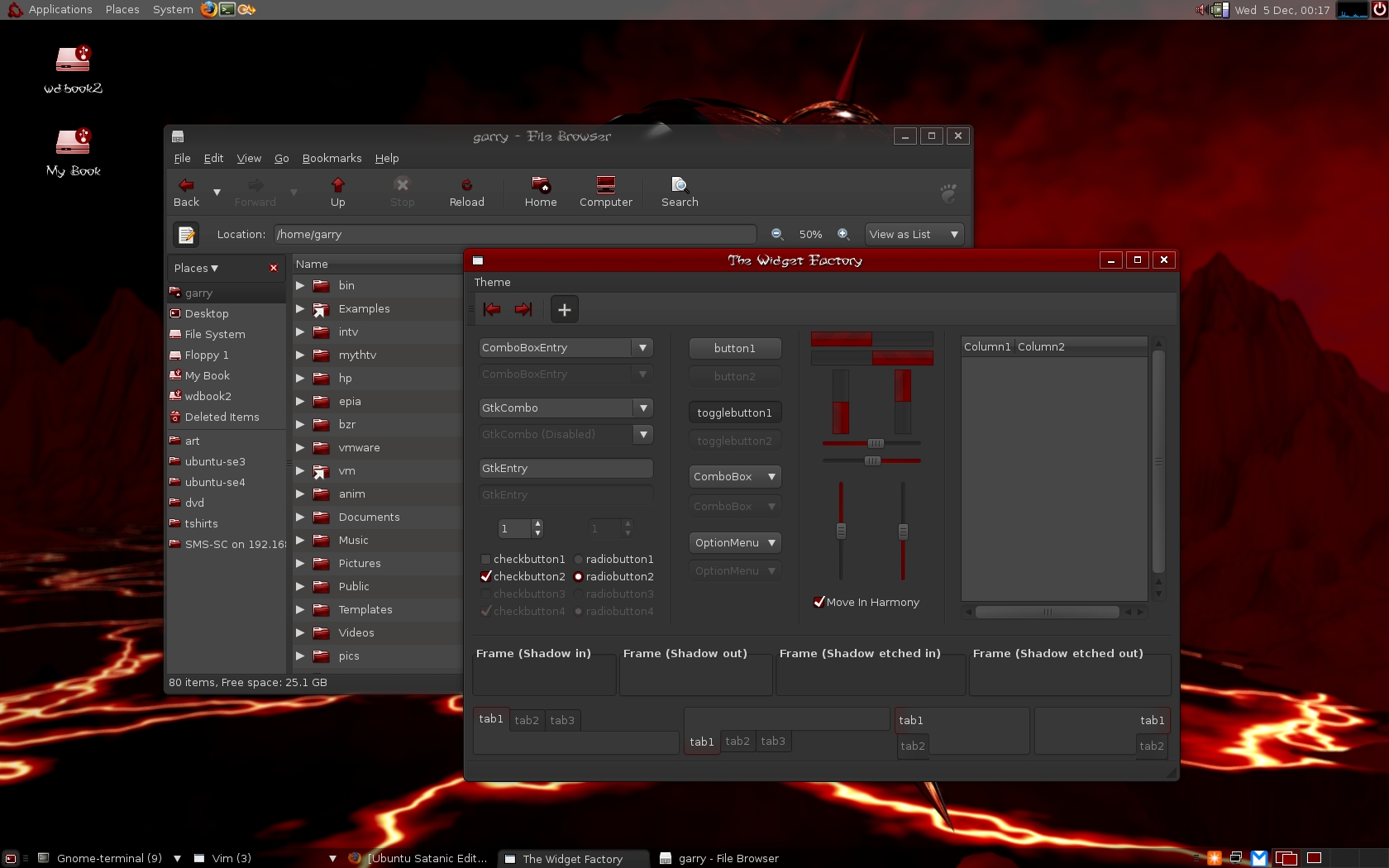
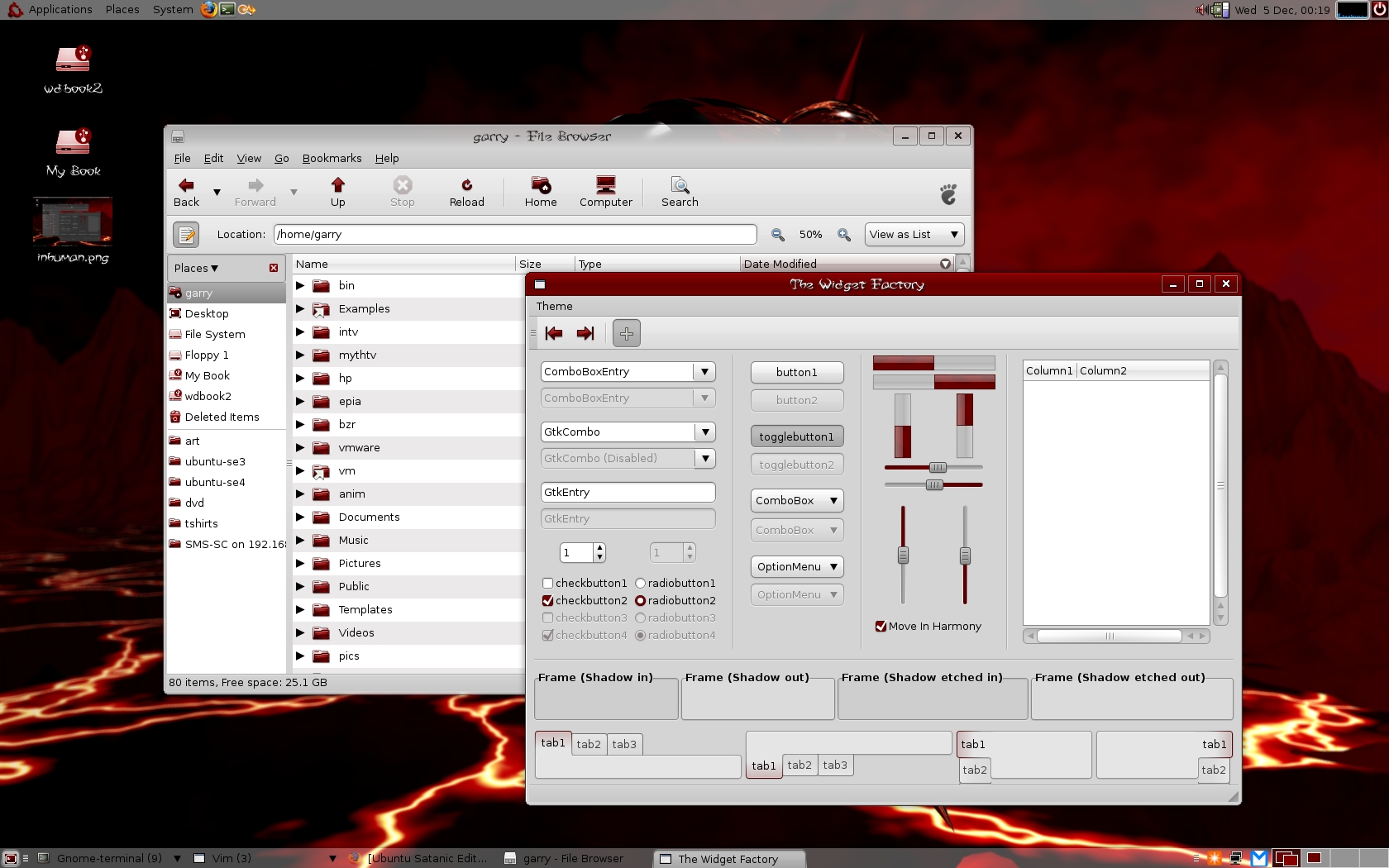
Under the "Theme" tab, there are two themes to choose from:
 |
|
 |
|
Sounds
SE provides custom login and logout sounds.
Unity: Click the icon in the top left and search for "Sound". Run the Sound application.
Classic Gnome: Select System->Preferences->Sound.
Under the [Sound Effects] tab:
- Change the Sound theme to "Satanic".
GDM Login Theme
Note that Ubuntu now uses a new, more integrated version of GDM. You can set the theme using the sataniconf script. Run sataniconf with no options to get a list of themes. For example, for the Satanic theme:
sataniconf gdm SE-Satanic
For versions prior to Karmic:
Select System->Administration->Login Window. The SE themes should be available.
Plymouth Theme
This changes the image which is shown during boot-up. The theme can be selected by running the following command:
sataniconf plymouth satanic-logo
To restore the default plymouth theme, run: sataniconf plymouth default
Screensaver

Unity: Click the icon in the top left and search for "Screensaver". Run the Screensaver application.
Classic Gnome: Select System->Preferences->Screensaver.
The Satanic screensaver is called Eternal Damnation.
It may be too late to save your soul, but you can easily uninstall the packages: